My Optimum
- 4.1
- Rating
- 500.00K
- Installs
- Free
- Price

 Analysis by App-foxy
My Optimum is a practical productivity app for people who already use Optimum services and want a single place to handle everyday account and connection tasks. I found its value less in flashy extras and more in reducing the number of separate steps involved in checking WiFi details, dealing with payments, and looking for help. That focused purpose makes it easy to understand, but it also means the app is most useful when your home internet or account is connected to Optimum.
Developed by CSC Holdings, LLC., the app is free and rated for Everyone. It has built a sizeable audience, with over 500 thousand installs, an average rating of 4.2 from around 13 thousand ratings, and roughly 2.1 thousand written reviews. Those figures suggest that many customers find it useful, while the written feedback also points to the kind of app this is: valuable for routine account management, but dependent on a smooth connection between the app, your account, and your Optimum services.
How I use My Optimum for the everyday tasks that matter
My normal starting point is the WiFi area. If I need to confirm which network I am using, check a connection-related detail, or get oriented after changing something at home, opening the app is more convenient than searching through old emails or trying to remember where a particular account page lives. The app’s central advantage is that it puts service-related information close to the place where I need it.
You May Also Like

 Blood Strike: 2.5 Anniversary
Blood Strike’s Loadouts Turn Every Drop Into a Tactical Gamble
A close look at Blood Strike’s custom loadouts: how fast access to signature weapons reshapes its battle royale rhythm, rewards preparation, and narrows the gap between fights.

 Pandora - Music & Podcasts
Pandora’s Music Is Easy to Start, but Harder to Recover
Pandora’s strength is its low-effort path from a seed to a station. Its weak spot is how much confidence it asks you to place in connection, setup, and quiet recovery.

 8 Ball Pool
 Is Built on Rivalries, Rematches, and Routine
A close look at the rivalries, rematches, shared routines, and unanswered safety questions that turn a quick pool match into a persistent mobile community.

 Samsung Music
’s Quiet Strength Is Playing What You Already Own
Its reach comes less from spectacle than from dependable access to a personal library. That simplicity is both the app’s strongest retention engine and its ceiling.

 AccuWeather: Weather Radar
AccuWeather Review: A Quick, Clear Forecast for Everyday Decisions
For everyday plans, the best forecast is the one you can understand quickly. AccuWeather makes rain timing, radar, and local conditions easy to act on, with a few trade-offs.

 Hill Climb Racing
Why Hill Climb Racing Still Turns Crashes Into One More Run
A tiny car, a bumpy hill and one more upgrade: Hill Climb Racing keeps resurfacing because its simple chaos makes every near-miss feel personal.
More From Our News Desk



A realistic example is arriving home after a router change or helping someone in the household reconnect a phone. Instead of switching between a browser, a bill, and a separate support search, I use My Optimum as the first checkpoint. I can begin with the account or WiFi information, then move toward help if the issue is not something I can resolve myself. This is not a replacement for every technical tool, but it gives me a sensible first route.
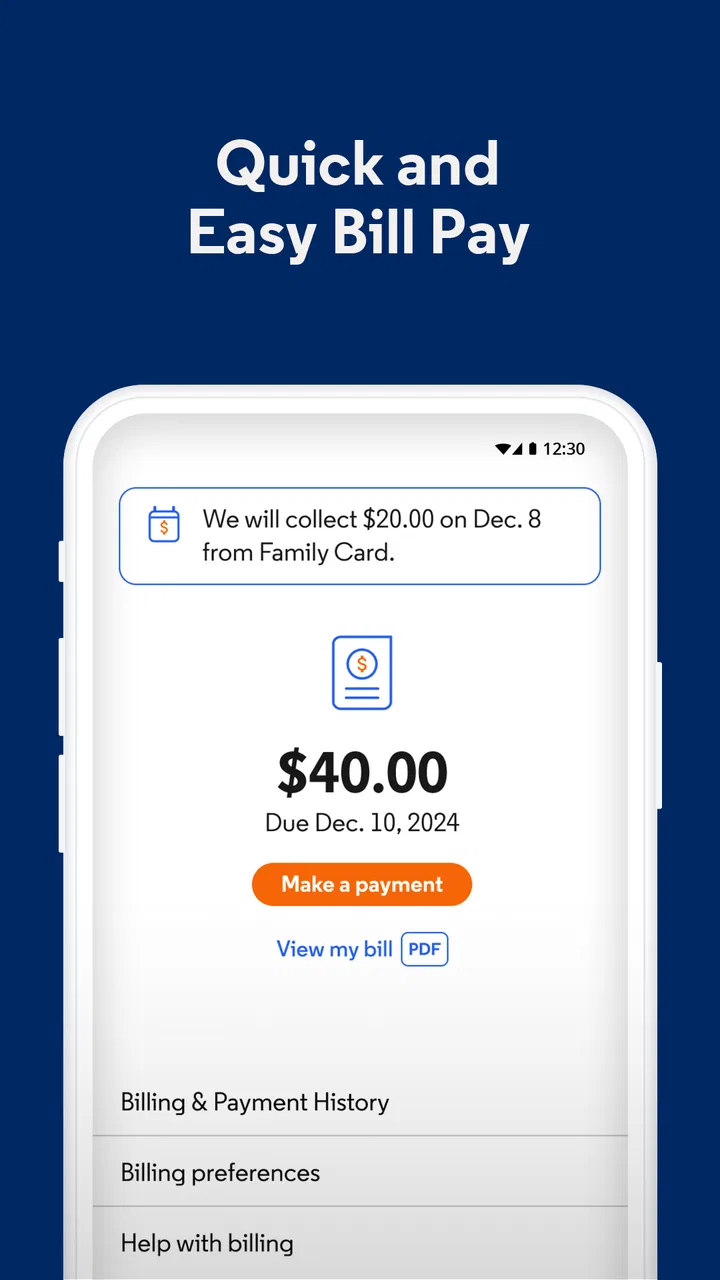
The payment side is equally important. I prefer handling a bill from an account app rather than navigating a general website on a small screen, especially when I am checking whether a payment has been made or trying to avoid missing a due date. The useful habit here is to treat the app as part of a regular account routine: open it when a bill arrives, review the amount and account details carefully, and only then complete the payment process.
The best reason to install My Optimum is the reduction of small account-management decisions. I do not have to wonder whether I should begin with a search engine, a printed bill, or a support page. When the issue concerns Optimum WiFi, payment, or assistance, the app gives me a direct place to start.
That focus also makes the app less compelling for people who are not Optimum customers. It is not a general WiFi analyzer, a universal bill organizer, or a productivity planner. Someone looking for detailed network diagnostics across different providers would be better served by a dedicated networking utility. Someone who wants one dashboard for several household bills may prefer a broader finance app. My Optimum works best when the user’s main need is specifically tied to an Optimum account.
What I check before relying on it
The first useful step after installation is making sure I am working with the correct account. Household internet accounts can involve more than one person, and a payment or service action is only helpful when it is attached to the right customer profile. I take a moment to verify the displayed account context before changing anything. That small pause is more important than speed because account apps combine convenience with actions that can have real consequences.
I also check whether the information shown matches what I expect from my home setup. If the WiFi details look unfamiliar, I do not immediately assume the app is wrong or that the network has been compromised. I first compare the information with the router label, the household’s usual network name, and the devices currently connected. This simple three-way check helps separate a normal setup change from a genuine connection problem.
Notifications and account access deserve attention as well. I prefer enabling only the alerts that help me act, such as reminders connected with account activity, while avoiding unnecessary interruptions if the available controls allow that choice. The point is not to open the app constantly. It is to make the app useful at the moments when a bill, connection issue, or support need requires attention.
Because the current version is 2.5.3.5 and the minimum operating system is version 10, I would check compatibility before planning to use it on an older phone. On a supported device, keeping the app current is sensible for account software, since sign-in and service screens can depend on changes made outside the app itself. I would also avoid judging a loading problem too quickly: account applications need both a working phone connection and access to the provider’s service systems.
Settings and habits that make the app less frustrating
I find that the most effective “settings” are often the choices made around the app rather than a complicated configuration menu. I keep my account credentials available through the phone’s secure password tools, use the correct customer profile, and avoid signing out unnecessarily when I know I will need to check the account again soon. At the same time, I do not leave an account open on a shared device without considering who else can access it.
For WiFi tasks, I use a repeatable order. First I identify the network and the device experiencing trouble. Then I check the app’s available connection information. After that, I restart or reconnect the affected device only if the situation points to a local problem. This prevents a common mistake: changing several things at once and then not knowing which action fixed the issue.
For payments, I use a separate routine. I open the account, review the balance or payment information, confirm the payment method, and then look for the resulting confirmation before closing the app. I do not rely on memory alone. If the app presents a confirmation, I keep that information accessible until I am satisfied that the transaction was registered. This is especially useful when a payment is being made close to a deadline.
There is also a privacy habit worth adopting. I avoid taking screenshots of account pages that display sensitive information, and I do not share WiFi or billing details in ordinary messages unless there is a clear reason. The app may make information easier to reach, but convenience should not turn into casual exposure of account data.
Faster patterns for repeat users
After using My Optimum a few times, I stop treating it as an app I need to explore from scratch. I use it as a short decision tree. If the problem is “Can I connect or identify the home network?”, I begin with WiFi. If it is “What do I owe or has my payment gone through?”, I begin with the account and payment area. If the problem is unclear or the first checks do not help, I move toward support instead of repeatedly refreshing the same screen.
This approach saves time because it matches the app’s purpose. I do not browse every section looking for something that may not exist. I start with the task, choose the closest route, and stop when I have either completed it or reached the point where assistance is needed. That is a better pattern than expecting a service app to explain every possible home-network problem.
For households, I recommend agreeing on one simple rule: use the app for account-level actions, but record household-specific WiFi changes somewhere everyone can understand. For example, if someone changes a network name or password, the family should know where the updated information is kept. My Optimum can help access service information, but it cannot replace clear communication between the people using the same connection.
Another useful pattern is checking the app before contacting support, but not spending too long troubleshooting inside it. I look for the obvious account, WiFi, or help path first. If the issue involves an outage, equipment behavior, or a problem that needs provider-side action, repeated taps will not create a solution. The app is valuable as a starting point and communication channel; it should not encourage me to delay necessary assistance.
When I am helping a less technical family member, I describe the app in plain terms: use this for Optimum account information, WiFi-related checks, payments, and help. I do not tell them it is a complete home-network control center. Setting the right expectation makes the experience easier, especially for someone who only opens the app when a bill arrives or the internet stops working.
Where the app reaches its limits
My Optimum’s narrow focus is both its strength and its main limitation. It brings provider-related tasks together, but it is not designed to replace specialized tools. If I need deep information about signal quality, channel congestion, device-level traffic, or advanced router configuration, I would look elsewhere. A dedicated networking app or the router’s own management interface is more appropriate for that kind of work.
It is also not the right choice for managing services from several companies. If my household uses different providers for internet, mobile service, and other bills, I cannot expect this app to become a universal dashboard. A general bill-management solution may be more convenient for that situation, although it would not necessarily provide the same direct connection to Optimum WiFi and support information.
There can be friction when an account app depends on sign-in, network availability, and current service information. If my internet connection is down, I may still be able to use a mobile connection, but the quality of the experience can vary depending on what the task requires. I keep that in mind and avoid assuming that an app connected to an internet provider will always be the ideal tool during a complete connectivity failure.
Payments require particular care. The app makes the process more convenient, but convenience does not remove the need to verify the amount, account, payment method, and confirmation. I would not use a quick tap as a substitute for reviewing those details. If someone prefers a bank’s bill-pay system or a desktop browser for financial tasks, that preference is reasonable. My Optimum is more attractive to users who want provider-specific access in a mobile format.
The age rating of Everyone makes the app approachable for a broad household audience, but that should not be confused with unrestricted account sharing. Adults should still decide who can access billing information and who is allowed to make account changes. The simple interface can make a task feel harmless even when the underlying action deserves care.
My overall impression is that the app’s rating of 4.2 reflects a useful but practical experience rather than a revolutionary one. It solves a defined set of problems well enough to earn a place on an Optimum customer’s phone. It will feel unnecessary to someone who rarely checks bills, never needs WiFi information, and prefers using a computer. It will feel more worthwhile to someone who regularly manages the household connection from a phone.
Who should install it, and who should skip it
I would recommend My Optimum to an Optimum customer who wants quick mobile access to WiFi information, payments, and help. It is particularly suitable for people who manage a household account, move between home and work, or frequently assist relatives with connection questions. The free price removes the main barrier to trying it, and the Everyone rating makes it suitable for ordinary family use when account access is handled responsibly.
I would skip it if I were looking for a provider-independent WiFi diagnostic tool, a full router administration suite, or a combined bill manager. I would also skip it as a primary tool if I rarely use mobile apps for account tasks and already have a desktop workflow that feels faster and clearer. Installing an app simply because it is available is not useful if it does not match the way I manage services.
Compared with a normal mobile browser, the app’s advantage is convenience: I can go directly to the provider-specific areas instead of searching for the correct page each time. Compared with a dedicated networking utility, its advantage is account context rather than technical depth. Compared with a bank’s bill-pay feature, its advantage is staying close to Optimum service information. Those comparisons make the choice clearer; the app is not universally better, but it is better aligned with provider tasks.
My verdict after building a repeatable routine
I see My Optimum as a focused companion for Optimum customers, not as a broad productivity platform despite its placement in that category. Its usefulness comes from combining three everyday needs in one mobile destination: checking WiFi-related information, managing payments, and finding help. The app becomes more effective when I use clear routines instead of wandering through it—verify the account, choose the task area, confirm the result, and escalate when the problem is beyond the app.
The developer, CSC Holdings, LLC., has kept the concept straightforward enough for a family member to understand, while the current version 2.5.3.5 gives users a defined app experience on supported devices. I appreciate that the app can shorten routine tasks, but I would not mistake that convenience for advanced network control or a universal financial tool.
My recommendation is simple: if Optimum is central to your home internet and account management, install it and build it into your monthly payment and occasional WiFi-check routine. If you need detailed diagnostics or one place for several providers, pair it with a more specialized option rather than expecting it to do everything. For the right customer, My Optimum is most successful when it becomes a dependable first stop, not the only tool for every connection or billing problem.
FAQs for My Optimum
01What is My Optimum and what does it offer?
My Optimum is a comprehensive app designed to enhance productivity and streamline daily tasks. It offers features such as task management, calendar integration, and customizable reminders. The app aims to help users organize their schedules efficiently and boost their overall productivity by maintaining a seamless workflow.
02Is My Optimum available for both Android and iOS devices?
Yes, My Optimum is available for download on both Android and iOS platforms. This ensures that users can enjoy its features across a wide range of devices, providing flexibility and convenience. You can find the app on the Google Play Store and the Apple App Store.
03How user-friendly is the My Optimum interface?
My Optimum boasts a clean and intuitive interface designed for ease of use. It provides a straightforward navigation system, making it accessible even for those who aren't tech-savvy. The design focuses on minimizing clutter while maximizing functionality to ensure a smooth user experience.
04Are there any in-app purchases in My Optimum?
My Optimum offers a free version with basic features, but also includes in-app purchases for premium functionalities. These might include advanced task management tools, additional themes, and priority customer support. Users can choose to upgrade based on their needs and preferences.
05How secure is my data on the My Optimum app?
My Optimum prioritizes user data security with robust encryption methods. Personal information and task data are protected to prevent unauthorized access. Regular updates ensure that the app stays up-to-date with the latest security protocols, giving users peace of mind regarding their privacy.
Pros
- User-friendly interface
- easy to navigate.
- Offers a wide range of customization options.
- Efficient performance with minimal lag.
- Regular updates enhance functionality.
- Comprehensive customer support available.
Cons
- Limited offline features available.
- Some features require in-app purchases.
- Occasional ads can be intrusive.
- Compatibility issues on older devices.
- Initial setup can be time-consuming.

My Optimum
Gallery